

A backup restore-test checklist shows whether your Microsoft 365 and business-data backups can return the right information to an approved location under controlled conditions. It does not guarantee recovery, and it should not begin with assumptions about what a cloud platform or backup product does. Start by documenting scope, retention, ownership and restore options, then test representative items and keep evidence. This guide is for operational planning by Singapore SMEs, not legal advice.
Start with the backup scope, not the product name
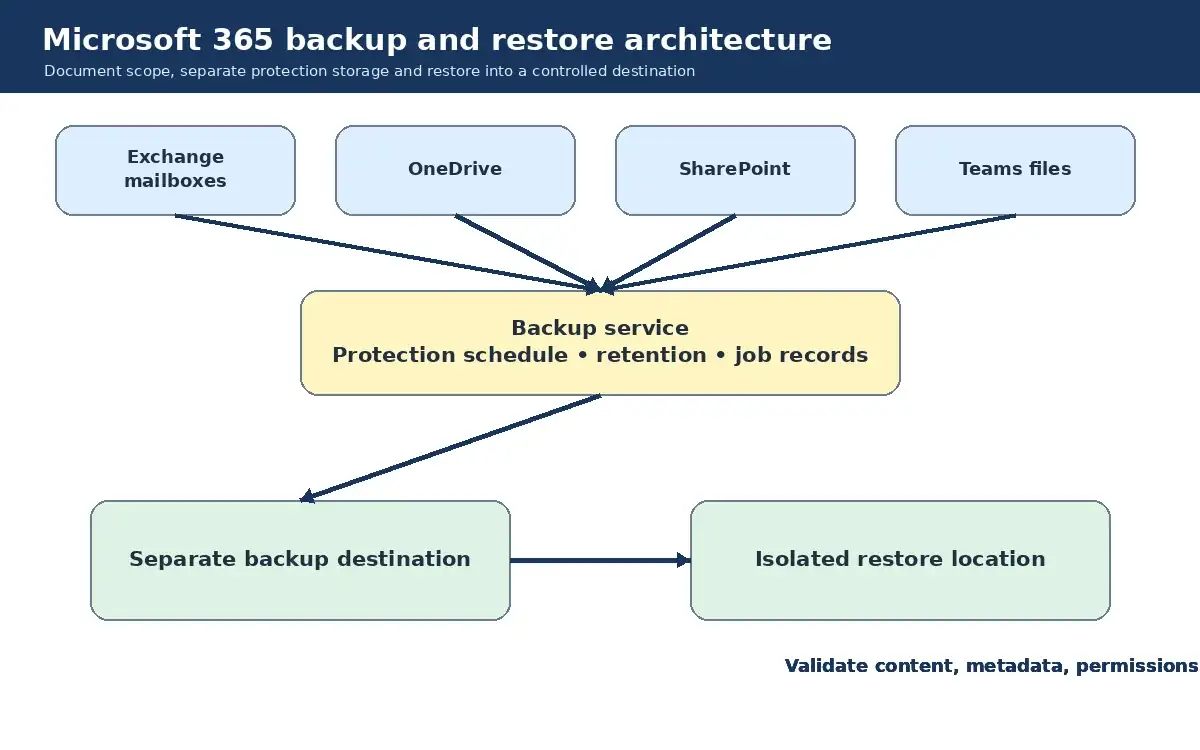
Write down each workload that matters to the business. For Microsoft 365, that may include Exchange mailboxes, OneDrive, SharePoint sites and Teams-related files. Add business systems, file servers, endpoints, databases and cloud workloads that sit outside Microsoft 365.
For every workload, record:
- system and business owner;
- data types and critical business processes;
- backup source and destination;
- frequency or protection schedule;
- retention configuration and important exclusions;
- restore methods available;
- who may request, approve and perform a restore; and
- dependencies such as encryption keys, service accounts or application versions.
Do not copy a retention number from a brochure into the register. Verify the setting actually applied to the relevant workload and note whether retention, deletion handling or version history differs by data type.
Define what a successful restore means
“Restore completed” is too vague. Success criteria should match the scenario. For a mailbox item, confirm the correct message, sender, timestamp, attachments and destination. For a SharePoint file, check content, version, permissions and location. For an application database, include an application-level validation by the owner.
Separate technical completion from business acceptance. The restore operator can confirm the job completed, while the business owner verifies that the recovered item is usable and appropriate.
Assign clear restore roles
- Requester: describes what is missing and the required point or version.
- Business owner: confirms the restore is justified and identifies sensitive data.
- Approver: authorises the action and destination according to policy.
- Restore operator: performs the job without expanding access unnecessarily.
- Validator: checks the result against agreed success criteria.
- Incident owner: coordinates escalation if the restore is linked to ransomware, account compromise or a wider outage.
In a small company, one person may hold more than one role. Still record the decisions. A restore can expose old or sensitive information, so access should be limited to people who need it for the test.
Choose representative restore tests
Build a small set that reflects how your business actually works:
- A recently deleted email with an attachment.
- An older mailbox item near an important retention boundary.
- A current OneDrive or SharePoint file.
- An earlier version of a changed document.
- A folder or small group of files with known permissions.
- A sample record or database in a non-production application environment.
- A file from a protected endpoint or server.
- One scenario where the first restore attempt is deliberately treated as unavailable, so the team practises escalation.
Use approved test data where possible. Do not select real sensitive records merely to make the exercise feel realistic. If production data must be restored, restrict access, document the reason and remove test copies under the organisation’s approved process.
Use an isolated restore destination
A test should not overwrite live data or create a second uncontrolled copy. Choose a designated test mailbox, isolated folder, non-production site or sandbox application where the operator can inspect the output. Apply time-limited permissions and record when the restored copy will be removed.
For an in-place restore that cannot be isolated, agree the change window, rollback approach and business owner before proceeding. A restore test must not become the cause of an outage.
Run the test step by step
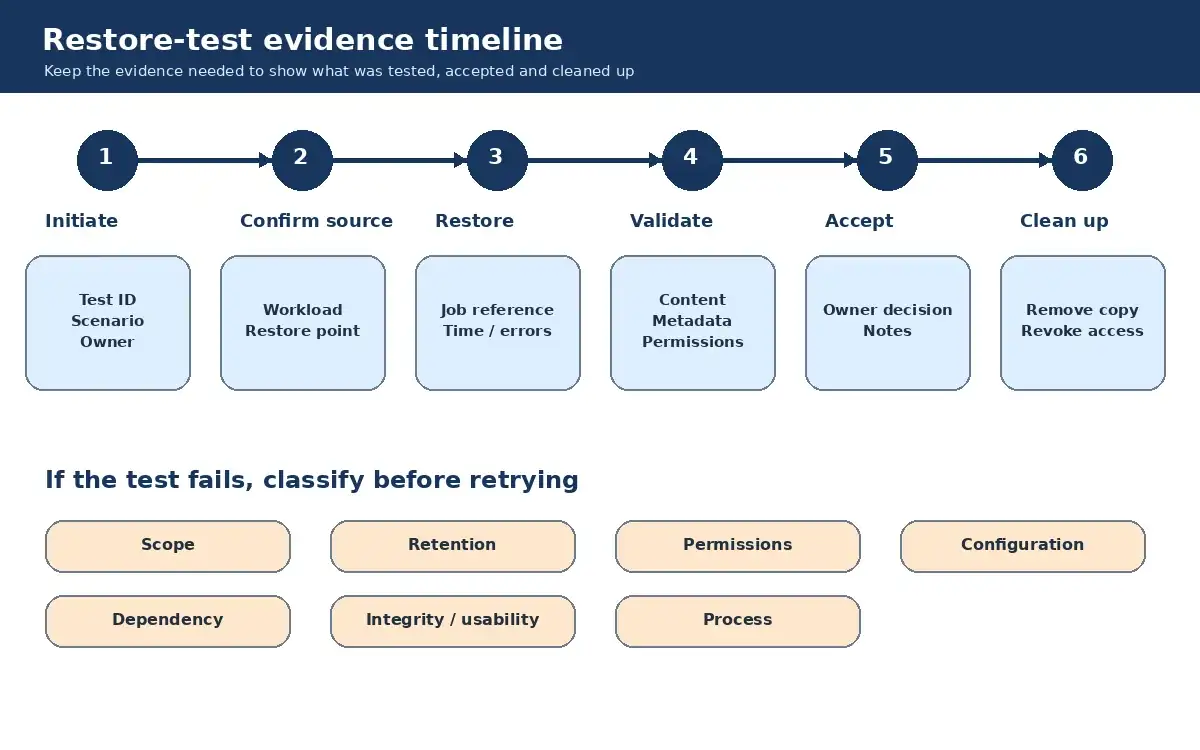
- Open a ticket with the scenario, requester, owner, approver and success criteria.
- Confirm the source workload and expected protection date or version.
- Check that the operator has the minimum required permissions.
- Confirm the isolated destination and cleanup owner.
- Start the restore and capture the job reference and timestamps.
- Record warnings, errors and any manual choices.
- Validate content, metadata, permissions and application usability as relevant.
- Have the business owner accept or reject the result.
- Remove or secure the test copy and revoke temporary access.
- Close the ticket with the outcome and follow-up actions.
Do not alter log timestamps or recreate evidence after the fact. If screenshots are used, include the job reference and context, but avoid exposing unnecessary personal or confidential data.
What evidence should the test retain?
A useful restore-test record includes the test ID, workload, selected item, requested restore point, destination, participants, approval, start and end time, backup job reference, restore job reference, validation checks, result, failure category, cleanup confirmation and action owner.
Evidence should show what was tested and whether it met the criteria. A green dashboard alone does not prove that the intended item was opened, its metadata was correct or the business owner could use it.
Classify failures before retrying
Use simple categories so recurring issues become visible:
- Scope: the workload or item was not protected as assumed.
- Retention: the requested version was outside the configured window or had been handled differently from the assumption.
- Identity and permissions: the operator, service account or destination lacked suitable access.
- Configuration: policy, mapping, credentials or destination settings were wrong.
- Dependency: encryption keys, application versions, network access or another system was unavailable.
- Integrity or usability: the job completed but validation failed.
- Process: the request, approval, ownership or evidence was incomplete.
Record the category, evidence and next owner before retrying. Repeated blind retries can hide a design or scope gap. Escalate according to the backup provider, managed service and incident procedures.
Set a review cadence based on change and importance
There is no universal interval for every workload. Test more frequently when data is critical, systems change often, staff turnover is high or a new backup configuration has just been introduced. Trigger an additional test after migrations, major permission changes, retention changes or recovery-process failures.
Maintain a rolling schedule that covers different workloads and restore types, rather than repeating the easiest file restore. Management should review missed tests, failed validations, overdue actions and scope changes.
Questions to ask after every test
- Was the requested item inside the documented backup scope?
- Did the configured retention match the register?
- Could the right person approve and perform the restore?
- Was the destination isolated and cleaned up?
- Did content, metadata and permissions meet the success criteria?
- What assumption proved wrong?
- Who owns the fix and when will it be retested?
When to get help
Sakal Network’s backup and recovery services for Singapore businesses can support protection planning, restore operations and review records across Microsoft 365 and business data. For a neutral discussion of your current restore-test process and its gaps, contact Sakal Network. Recovery outcomes depend on scope, configuration, data condition and the incident; no checklist can guarantee them.