

A Microsoft 365 joiner–mover–leaver checklist gives a Singapore SME one controlled way to grant, change and remove staff access. The aim is simple: each person receives the access needed for their current job, shared resources have named owners, and access is removed at the right time when employment or responsibilities change. This is especially important for employment agencies and service businesses that handle applicant, customer or commercial documents. This guide is operational guidance, not legal advice.
Who should own the joiner–mover–leaver process?
Assign one business owner for the process, usually HR or operations, and one technical owner who makes the Microsoft 365 changes. The business owner confirms the person’s role, start date, manager and approved access. The technical owner creates or changes the account and records what was done. A manager should approve any access that goes beyond the standard role profile.
Do not let a new employee, an external recruiter or a departing manager become the only source of truth. Keep a short request record with the requester, approver, effective date, access requested and person who completed the change. That record can be a controlled form, ticket or workflow.
Build role profiles before the next joiner arrives
Create a basic role profile for each common job. It should list:
- Microsoft 365 licence and core applications;
- Teams, SharePoint sites and security groups;
- shared mailboxes and calendars;
- department folders and line-of-business systems;
- whether the role may share files externally; and
- the manager or information owner who approves exceptions.
A role profile is a starting point, not automatic permission to everything a colleague can see. Use the least access needed for the work. If a role only needs to upload applicant documents, it may not need permission to download every record in the library.
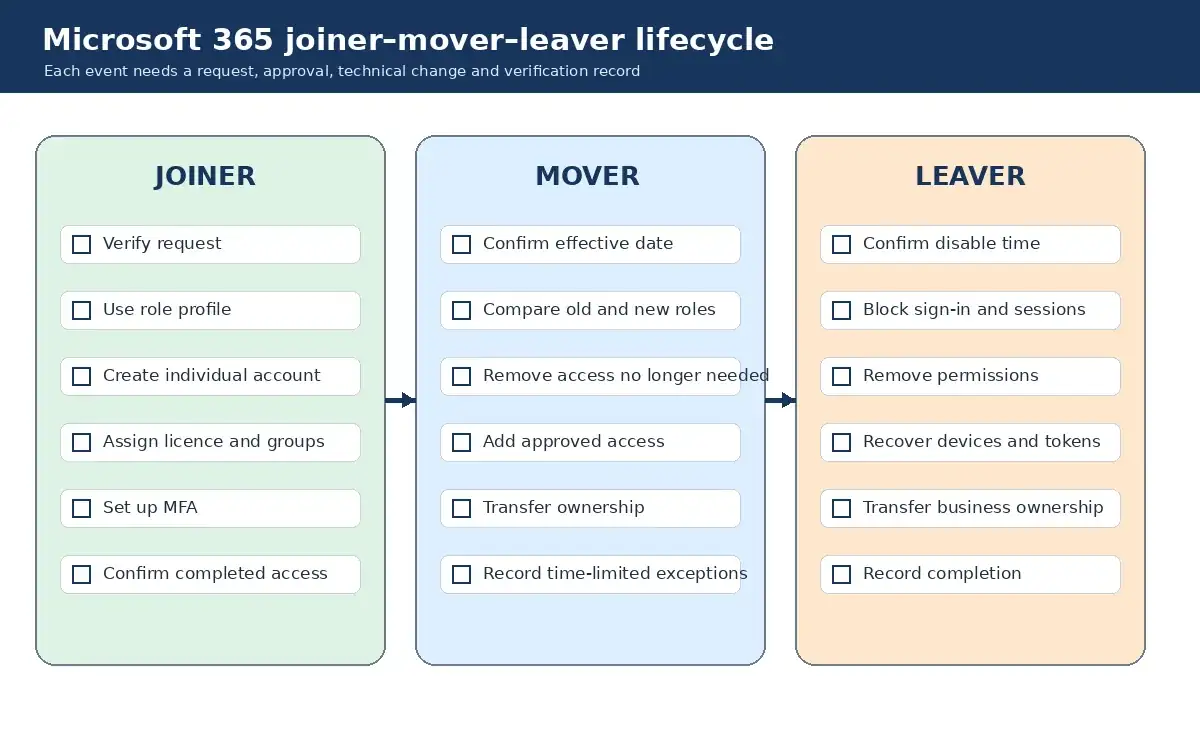
Joiner checklist: prepare access without sharing passwords
- Verify the request. Confirm the start date, employing entity, manager, role and approved name or username.
- Select the role profile. Add only documented exceptions with a named approver.
- Create an individual account. Avoid shared user logins. Shared mailboxes and team resources should still be accessed through each person’s own identity.
- Assign licence and groups. Record the licence, Teams, SharePoint sites, groups and business applications granted.
- Set up MFA. Require multi-factor authentication and provide a controlled first-login or registration process. Do not send a permanent password in plain text.
- Check shared resources. Test the shared mailbox, calendar, relevant folders and any delegated permissions the person actually needs.
- Confirm ownership. The manager acknowledges the completed access list and any open items.
Complete the account before the start date where practical, but do not make sensitive access usable earlier than the approved effective time. Contractors and temporary staff should have an end date or scheduled review from day one.
Mover checklist: treat role changes as access changes
A promotion, transfer, long leave or project assignment can leave old access behind. Do not only add the new department’s groups. Compare the old and new role profiles, then decide what to retain, remove and add.
- Confirm the effective date and new manager.
- Remove old Teams, SharePoint and application access that is no longer needed.
- Review shared mailbox and delegated calendar permissions.
- Transfer ownership of workflows, forms, shared files and recurring reports.
- Check whether the Microsoft 365 licence still fits the role.
- Record time-limited exceptions and their review date.
For employment and service businesses, ownership matters as much as access. Candidate folders, customer correspondence and case documents should not become dependent on one person’s account. Move operational records to an approved shared location with a named business owner.
Leaver checklist: agree the timing before the last day
HR or management should provide the technical owner with the approved effective time. A routine resignation may be disabled after the agreed handover. An immediate departure may require a different sequence. The technical team should not guess.
- Confirm the disable time and authorised requester.
- Block sign-in and revoke active sessions at that time.
- Remove group, shared mailbox, application and external-sharing permissions.
- Recover company devices, access tokens and other authentication methods.
- Transfer ownership of business files, calendars, forms and automations to the approved owner.
- Apply the organisation’s approved mailbox and data handling decision. Do not leave an account active merely so colleagues can keep using its files.
- Review forwarding, mailbox delegation and automatic replies for an owner and end date.
- Record completion and any exception that remains open.
A leaver checklist should distinguish disabling access from deleting data. Retention and deletion choices depend on the organisation’s needs, policies and professional advice. This article does not prescribe a legal retention period.
Review shared mailboxes, files and external guests
Shared resources are common blind spots. Give each shared mailbox, SharePoint site and Teams workspace a business owner. At least periodically, ask the owner to confirm current members, external guests, links that allow broad access and people with elevated permissions.
For high-turnover teams, review more often. Also trigger a review after a manager changes, a project closes or a service provider’s contract ends. The useful record is not a screenshot with no context. Capture the resource, reviewer, review date, decision and follow-up action.
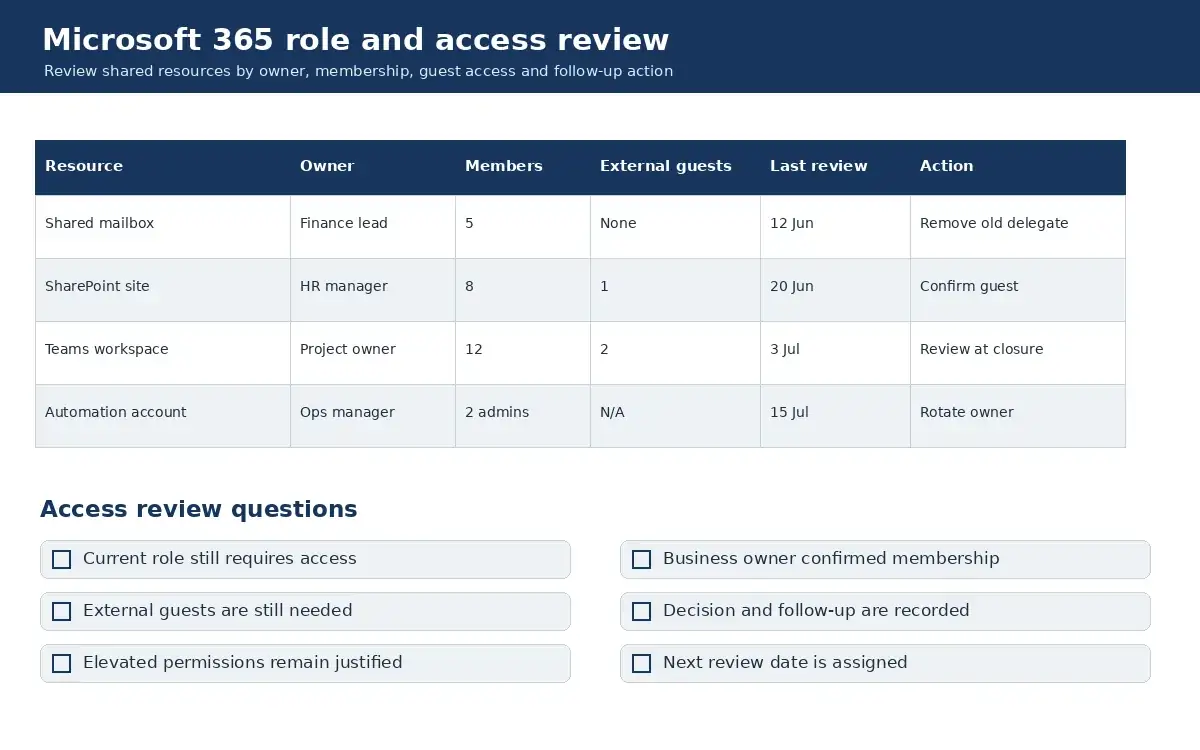
Keep evidence that a busy SME can maintain
A practical review record can be one ticket per lifecycle event plus a simple access-review register. It should answer five questions: who asked, who approved, what changed, when it took effect and who verified completion. Avoid collecting unnecessary personal data in the record.
Sample a few recent joiners, movers and leavers each quarter. Check whether the request, approval, technical change and closure match. Repeated exceptions usually mean the role profile or workflow needs fixing.
When to get help
If access changes rely on memory, shared passwords or one administrator’s inbox, formalise the process before adding more tools. Sakal Network’s IT managed services for Singapore businesses can help operate account, device and access changes within an agreed process. For a neutral discussion of your current Microsoft 365 workflow, contact Sakal Network.